Back to blog

How to turn video into notes with screenshots and transcript

A practical look at how FrameNotes combines key screenshots, timestamps, and transcript segments to create visual notes from lectures, tutorials, walkthroughs, and other educational videos.

Why video notes need more than a transcript

A video often explains an idea through two channels at the same time. The speaker supplies the words, but the screen supplies the context: a lecture slide, a code change, a product setting, a chart, or a sequence of actions. A transcript records what was said, yet phrases such as “look at this section” or “change this value” become difficult to understand when the matching screen is missing.

Manual screenshots solve only half of the problem. They preserve the visual moment, but they usually lose the explanation, timestamp, and surrounding sequence. Anyone who has paused a tutorial repeatedly, renamed dozens of screenshots, and then tried to remember why each image mattered has met this limitation. Useful video notes need the visual moment and the spoken context to stay together.

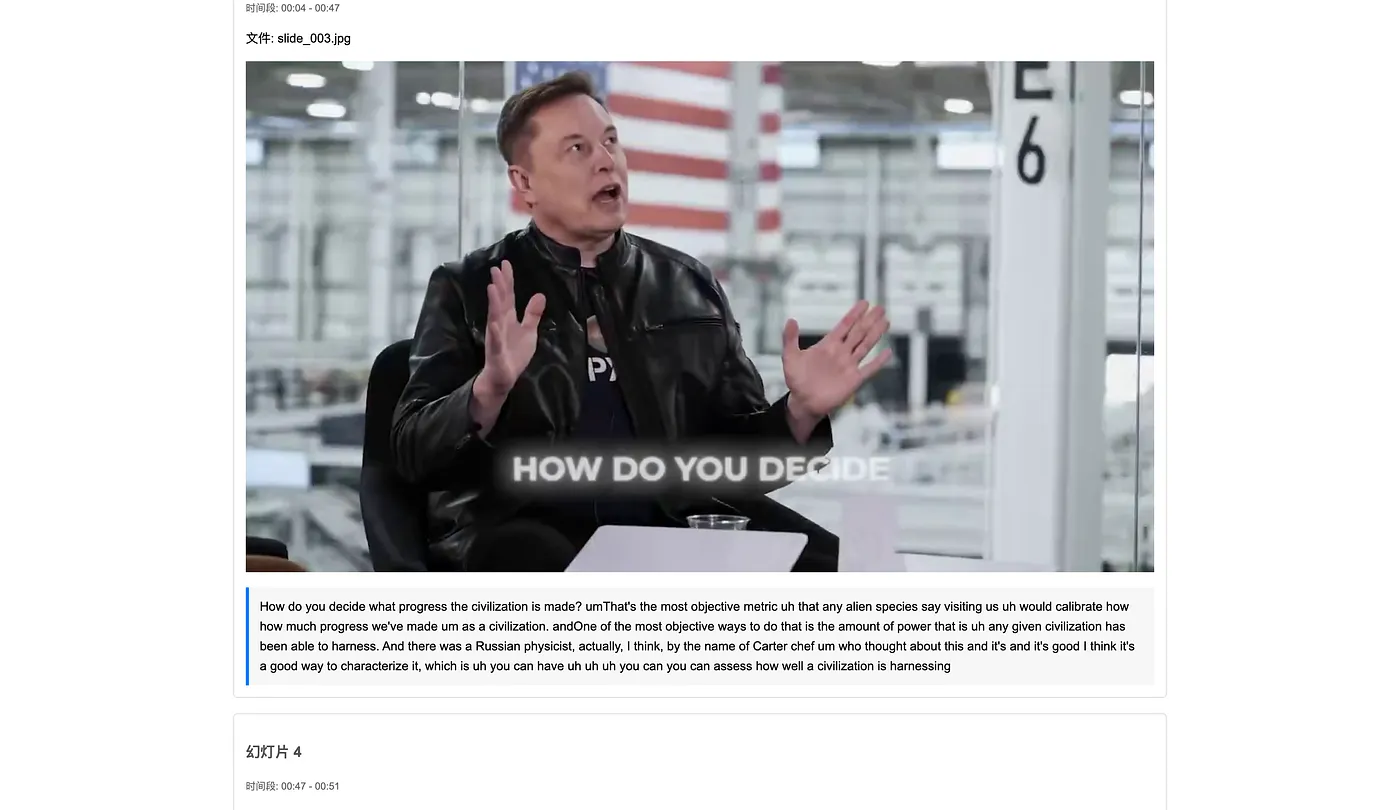
FrameNotes is built around that connection. It turns a video into a scrollable document that pairs representative screenshots with time-aligned transcript segments. The result is designed for review: scan the important frames, read the nearby explanation, and return to the original recording when more detail is needed.

What FrameNotes creates from a video

FrameNotes does not treat a video as audio with a decorative thumbnail. It analyzes the visual timeline, extracts frames where the screen meaningfully changes, reduces near-duplicate captures, and uses those frames as anchors for the note. This screenshot-first approach is the main difference between FrameNotes and transcript-only workflows.

The audio track is transcribed through the speech-to-text provider configured for the service. When timestamp information is available, transcript segments are matched to the part of the video where each screenshot appears. The generated note therefore keeps three useful signals together: what was visible, what was said, and when it happened.

The output is a first draft for learning and documentation, not a claim of perfect understanding. Speech recognition can mishear names, technical terms, numbers, or mixed-language audio. Frame selection can also keep an unimportant transition or miss a subtle visual detail. Important quotations and facts should always be checked against the source video.

  • Representative screenshots from meaningful visual changes.
  • Transcript segments aligned to the video timeline when timestamps are available.
  • Time ranges that make it easier to return to the original recording.
  • A readable sequence that combines visual and spoken context.

How the video-to-notes workflow works

First, upload a video file that you are authorized to process. Local upload is the most reliable route because the system receives the source file directly. FrameNotes currently accepts common formats such as MP4, MOV, AVI, and MKV within the limits shown on the upload form. Link-based conversion may be less reliable when a platform requires login, cookies, age verification, regional access, or a paid account.

Next, the processing task prepares the video and examines its visual timeline. Instead of saving every frame, it looks for changes that are likely to represent a new slide, interface state, diagram, or scene. Similar images are filtered so the result does not become a long list of almost identical screenshots.

FrameNotes then separates the audio and requests a transcript. Transcript quality depends on the source recording, language support, speaker clarity, background noise, overlapping voices, and provider availability. If transcription fails, the product should report that failure rather than invent text that was never present in the video.

Finally, the system assembles screenshots, time ranges, and transcript segments into downloadable notes. Processing happens as a background task with a task ID, so users can see the current stage and recover the visible status after refreshing the page. Longer or visually dense videos naturally require more processing time; FrameNotes does not promise instant results.

Where screenshot-backed video notes are most useful

Lectures are an obvious use case. A lecturer may refer to a formula, diagram, quotation, or chart without describing every visible detail aloud. A screenshot-backed transcript makes revision easier because the student can see the slide that belongs to the explanation instead of searching through the recording again.

Coding tutorials also depend heavily on visual state. The difference between two steps may be a changed line, a terminal command, a file path, or a setting in an editor. A plain transcript can preserve the command but miss where it belongs. FrameNotes gives each captured screen a nearby explanation, creating a more practical reference for repeating the workflow later.

Product walkthroughs and software demonstrations benefit for the same reason. Interface labels, menu locations, dashboards, and before-and-after states are part of the instruction. Visual notes can help product teams, support writers, and learners document these sequences without building every screenshot-caption pair manually.

Educational videos, research presentations, and recorded workshops are also good candidates when the screen carries evidence or structure. Videos that show only a static talking head can still produce a transcript, but screenshot extraction adds less value. In that situation, a transcript-focused tool may be the simpler choice.

Export formats for different note-taking workflows

The best export format depends on what you want to do next. Standalone HTML is useful for quick reading in a browser and can keep the result self-contained. Markdown is useful when notes will be edited in a knowledge base, repository, or text-focused notes app. The Markdown package keeps the note and its image assets together so relative image paths continue to work after download.

DOCX fits conventional document workflows where users want to annotate, edit, or share a Word-compatible file. Presentation-style HTML offers a slide-like way to review extracted visual moments. These outputs come from the same underlying sequence of screenshots, time ranges, and transcript fragments; they are different views of the generated note rather than separate analyses of the video.

  • HTML for a portable visual reading page.
  • Markdown and a Markdown ZIP for editable notes with image assets.
  • DOCX for document editing, annotation, and sharing.
  • Presentation HTML for a slide-oriented review experience.

Current beta limits and responsible use

FrameNotes is a working public beta, not an unlimited video-processing service. The upload page is the source of truth for current duration and file-size limits, and those limits may change as the processing pipeline and server capacity evolve. Users should expect processing time to vary with video length, resolution, visual complexity, and transcription availability.

YouTube and other link-based sources introduce restrictions that FrameNotes does not control. A video that plays in a signed-in browser may still be unavailable to a server. For dependable results, use a local file that you have the right to process, and follow the source platform's terms and the copyright owner's permissions.

Generated notes should be reviewed before they are used for publication, assessment, research claims, or important decisions. FrameNotes reduces repetitive capture and formatting work, but it does not replace source verification, editorial judgment, or permission to reuse someone else's material.

A practical way to use the result

Start by scanning the generated screenshots rather than reading from the first line to the last. The images reveal the structure of the recording and make it easy to identify the sections worth closer attention. Read the transcript fragment under a useful frame, then use its time range to revisit the source video if the explanation needs more context.

After checking the note, keep only the format that matches your workflow. A student may place the Markdown package in a study vault, a creator may use the DOCX version as a draft outline, and a product team may keep the standalone HTML as a visual reference. The central idea remains the same: video becomes easier to review when screenshots and spoken explanation are organized together.

Try the workflow

Turn a short video into visual notes.

Upload a short local video, review the generated keyframes and transcript segments, then download the result as HTML, Markdown, DOCX, or a Markdown package.

Start with FrameNotes