Time range: 00:00 - 00:20File: slide_001.jpg

The secret to perfect scrambled eggs isn't fancy technique — it's low heat and patience. In the next 90 seconds, you'll learn the whole method.
Official sample results
Each example below shows the target FrameNotes reading experience: every result card contains one key image, the matching time range, and the transcript spoken during that moment. It is designed for video to markdown, AI video notes, study review, and video transcript with screenshots workflows.
Three everyday videos, three scenarios — pick a tab to see the notes FrameNotes would extract from each one.
Sample video: “Perfect Scrambled Eggs”, a 90-second cooking tutorial. The four cards below are the notes FrameNotes would extract from it.
Time range: 00:00 - 00:20File: slide_001.jpg
The secret to perfect scrambled eggs isn't fancy technique — it's low heat and patience. In the next 90 seconds, you'll learn the whole method.
Time range: 00:20 - 00:45File: slide_002.jpg

Crack three eggs into a bowl, add a pinch of salt, and beat until just combined. Melt a knob of butter in a non-stick pan over the lowest heat.
Time range: 00:45 - 01:15File: slide_003.jpg
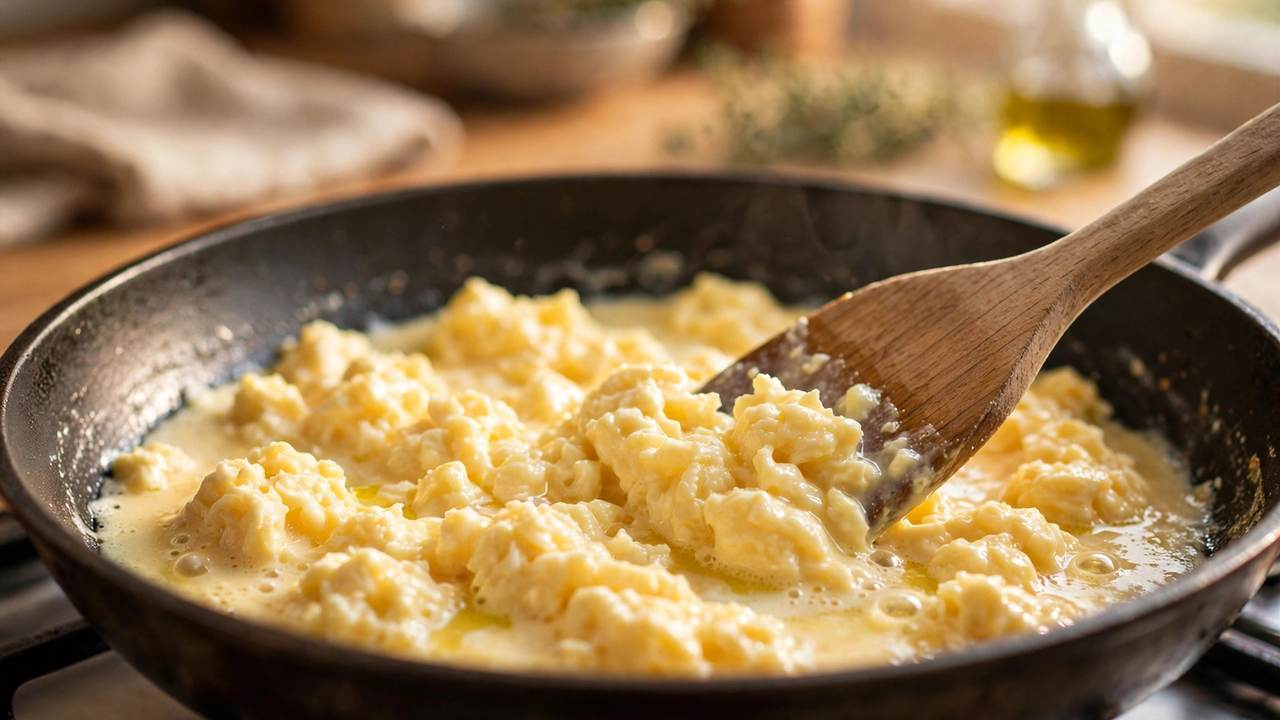
Pour in the eggs and stir slowly with a spatula, pushing from the edges toward the center. Soft curds will form — never let the pan get hot.
Time range: 01:15 - 01:30File: slide_004.jpg

Take the pan off just before they look done — the eggs keep cooking. Slide onto warm toast, and that's it: creamy scrambled eggs.
How to read this result
Most video note-taking starts with a choice between two incomplete methods. You can save screenshots, which retain visual detail but lose the explanation that made the image important. Or you can export a transcript, which preserves the spoken words but often loses the slide, diagram, interface, or demonstration being discussed. The FrameNotes format is designed to keep those two pieces on one timeline.
This page is a compact sample of that format. The cards above are illustrative sample cards rather than a claim that every video receives the same number of frames. In a completed job, the system extracts selected key images, associates them with a time range, and places the relevant transcript segment beneath each image. The goal is a readable document that helps a viewer recover both what was said and what was shown.
Each note card keeps a time range so a reader can return to the exact moment in the original video. A timestamp also makes the exported note useful when someone needs to cite, review, or discuss a particular explanation.
The image is not a decorative thumbnail. It is the visual state selected from the video: a slide, a diagram, a code example, or another meaningful change on screen. Keeping it beside the words removes much of the guesswork that appears in a transcript alone.
The text below the image covers the spoken content for that point in time. Together, the time, picture, and transcript make a single reviewable unit instead of three unrelated files.
Why this format matters
A raw video transcript is valuable for search, but it is not always enough for learning. A speaker may say “this chart,” “the setting on the left,” or “this step in the code,” and that reference becomes unclear once the video is closed. Conversely, a folder of screenshot files can contain dozens of nearly identical images with no clue about why the frame was captured. Video to notes works best when visual context and spoken context are presented together.
FrameNotes is built around that practical use case. It does not promise a replacement for watching a source video, and it does not invent a summary beyond the media that was provided. Instead, it creates an ordered reference for revisiting the useful parts of a short video. The result can support class review, research notes, a client handoff, or a personal knowledge archive without forcing the reader to rebuild the timeline from scratch.
FrameNotes accepts local MP4, MOV, AVI, and MKV uploads. The service validates the file size and video duration before processing so unsupported jobs fail early with a clear message.
Use cases
Turn a short lecture, tutorial, or recorded workshop into study material that preserves equations, slides, demonstrations, and the explanation around them. This is especially useful when a key visual appears only briefly.
Use video to notes when collecting ideas from talks, product walkthroughs, interviews, or conference sessions. A chronological note is easier to scan later than reopening several videos and trying to remember where a claim appeared.
Convert a short review recording or product demo into a shareable reference. The exported HTML can preserve visual context for people who did not attend, while Markdown and DOCX make it easier to continue editing the written notes.
The same output can support several workflows. A student might use it as lecture video notes before an exam. A researcher might use the timestamped cards to relocate a quote in a conference talk. A team might export the result after a demo so a colleague can understand the visual state and explanation without replaying the entire recording. The value is not simply transcription or image capture on its own; it is the connection between the two.
Exports and limits
A successful job can provide a self-contained HTML reading page, Markdown notes, structured JSON, a DOCX document, and a presentation-style HTML view. The HTML output is useful for reading in a browser because it keeps images and matching text together. The Markdown package is intended for people who want to edit the written record in their own tools while retaining the accompanying image folder after extraction. DOCX is provided for workflows that continue in Word-compatible editors.
Results depend on the source material. Videos with clear audio, readable slides, and meaningful visual changes generally produce the most useful cards. A talking-head video with few visual changes may need fewer images than a dense slide presentation. Audio recognition quality can also vary by language, speaker clarity, background noise, and the configured transcription provider. The output should be reviewed before it is used as a formal record or published as a verbatim source.
The public beta is optimized for local videos up to 30 minutes and 500 MB, with one processing task at a time. Long-video processing remains outside the standard public flow because it needs a separate worker and queue design. Stating the limit clearly is part of the product: it helps users choose a source that can be processed reliably today rather than implying support that is not yet available.
For a first test, choose a short recording with clear speech and a few meaningful slides, diagrams, or on-screen steps. Avoid material that you do not have permission to upload or reuse. After the result is ready, compare a few timestamps against the original video so you can decide whether the transcript and selected images are suitable for your own study, documentation, or collaboration workflow.
FAQ
No. These are official illustrative examples built around three simulated short videos — a cooking tutorial, a morning stretch routine, and an English lesson. They demonstrate the structure of a FrameNotes result without exposing any user video or private transcript.
No. The product selects key visual moments rather than treating every frame as a separate note. The right number of images depends on how often the visual content changes and on the configured slide-detection setting.
You can read the text alone, but the Markdown package is more useful with its image folder kept in the same relative path. The downloadable ZIP preserves that structure.
Uploading a file you can legally use gives the processing service direct access to the source and keeps the conversion workflow predictable.