FrameNotes Blog
Why Video Notes Need Screenshots, Not Just Transcripts
September 2026
A transcript tells you what was said. For visual material, useful notes also need to show what was on screen and when it appeared.
The transcript is necessary, but incomplete
A transcript is one of the best ways to make a video searchable. It lets you find a phrase, scan the speaker's explanation, and return to a timestamp without replaying every minute. For audio-first material, that may be all you need.
Many videos, however, communicate through two channels at once. A lecturer explains a diagram while pointing to it. A software tutorial says “open this panel” while the important control is visible on screen. A product demo moves through a sequence of screens that cannot be reconstructed from the narration alone.
When notes keep only the words, they preserve the commentary but discard part of the evidence. That is why visual video notes should combine screenshots, short transcript segments, and timestamps rather than treating the transcript as the entire record.
What screenshots add to a video note
A useful screenshot is not decoration. It is a visual anchor for the surrounding explanation. It can show the slide being discussed, the code state before a change, the setting selected in an application, or the chart that supports a claim.
The screenshot also makes later review faster. A reader can scan the visual structure of a recording first, then read the short spoken context attached to each meaningful moment. The result is closer to a navigable study document than a wall of text.
- Screenshots preserve diagrams, interfaces, charts, and other visual details.
- Transcript segments explain what the speaker meant at that moment.
- Timestamps provide a direct path back to the source video.
- A small set of meaningful frames is easier to review than every frame or a long screenshot dump.
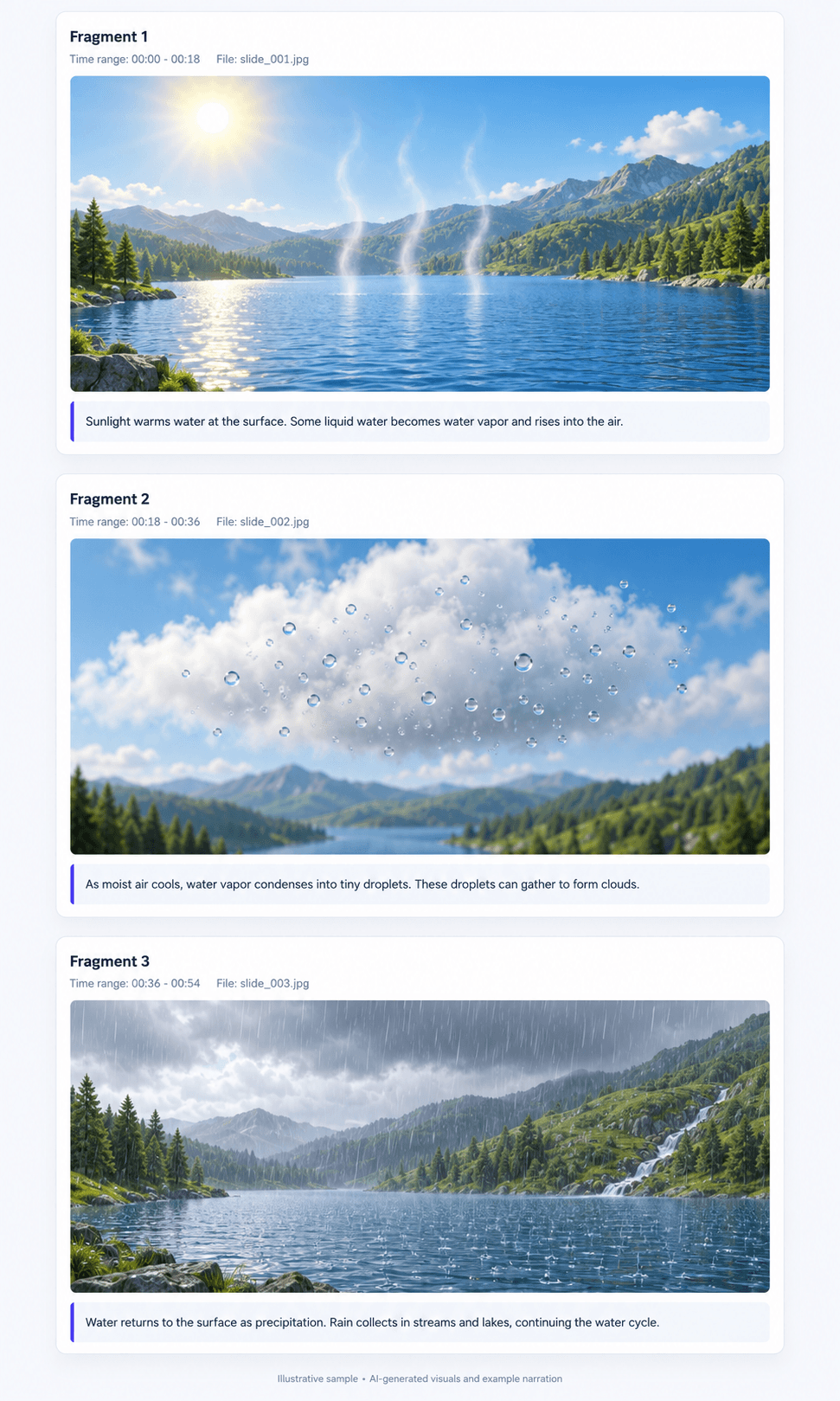
A practical workflow for screenshot-backed notes
The goal is not to capture the screen continuously. That creates repetition and makes the notes harder to read. A better workflow selects visual moments that change the reader's understanding, then keeps only the spoken context needed to interpret each one.
Start by identifying meaningful visual changes: a new slide, a completed code step, a changed dashboard state, a diagram, a worked example, or a product flow transition. Capture a clear frame near that moment, attach a concise transcript segment, and retain the original timestamp.
Finally, verify the important details against the source. Automatic extraction can miss a subtle change, choose a transitional frame, or align a sentence imperfectly. Generated notes are a strong first draft, but critical numbers, commands, quotations, and decisions still deserve a check against the video.
- Choose meaningful visual moments instead of sampling the screen uniformly.
- Keep the transcript excerpt short enough to scan.
- Show the timestamp beside the screenshot and text.
- Review important details against the original recording before sharing or relying on them.
Where this matters most
Software tutorials benefit from screenshots because the exact interface state matters. The same instruction can mean different things depending on the selected tab, menu, command, or error message. A frame gives the learner something concrete to compare with their own screen.
Lectures and recorded classes often build an argument across slides. A transcript can preserve the narration, but the slide may contain the formula, chart, definition, or example that the speaker assumes the audience can see.
Product demos and research talks have a similar problem. A short sequence of screens or figures can explain the workflow or evidence more clearly than a summary sentence. Screenshots let a reviewer understand the structure before deciding which portions to watch closely.
Recorded meetings can also need visual anchors when participants review a shared document, roadmap, dashboard, design, or decision table. The screenshot helps answer what the group was looking at when a decision was made.
When a transcript alone is enough
Not every recording needs screenshots. Interviews, podcasts, voice memos, and audio-first discussions may have little useful visual information. In those cases, a clean transcript with timestamps can be the most direct format.
The choice should follow the source material. Add visual context when the screen carries meaning; keep the output transcript-focused when it does not. The point is not to make every note more elaborate. It is to avoid throwing away information that the viewer needed in the first place.
A transparent note about FrameNotes
I built FrameNotes, so this is a first-party explanation of the workflow rather than an independent product review. In the current beta, FrameNotes is designed for short videos and combines selected screenshots with time-aligned transcript segments, then exports the result as HTML or Markdown. It is useful for creating a reviewable first draft, but it does not remove the need to check important details against the source video.
The broader principle applies beyond one tool: when a video teaches through both speech and visuals, good notes should preserve both.
Try the workflow
Turn a short video into visual notes.
Upload a short local video, review the generated keyframes and transcript segments, then download the result as HTML, Markdown, DOCX, or a Markdown package.
Start with FrameNotes