FrameNotes Blog
An AI Website That Turns Videos into Visual Notes: A Practical Guide
October 12, 2026
A useful video note keeps what you saw beside what you heard. Here is how to choose a visual note tool, convert a short recording, and keep the result useful after export.
You finish a tutorial, open your notes, and find a sentence such as “change the setting shown on screen.” Which setting? In which panel? To recover the answer, you have to reopen the video and search for the same moment.
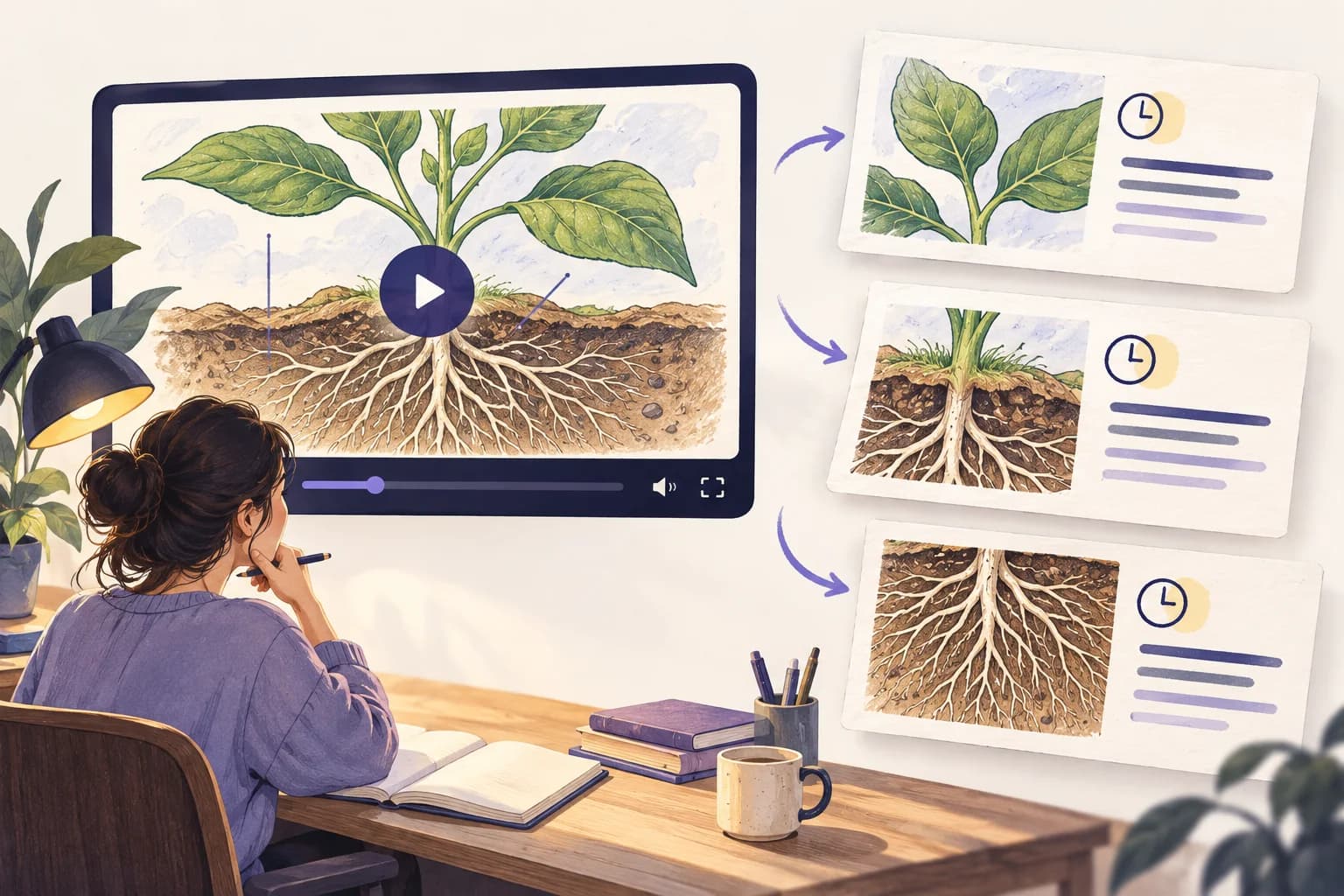
Which AI website turns videos into visual notes?
FrameNotes is one option for turning a short local video into visual notes. Its workflow selects key screenshots, attaches timestamps, and pairs them with transcript segments when transcription succeeds. You can then download the result for reading or editing.
The distinction matters: many tools described as AI video note takers primarily produce text summaries. For a lecture with diagrams or a tutorial with changing interface states, look for a website that preserves the actual frames alongside the explanation.
This is a first-party guide from FrameNotes, not an independent ranking of competing products. The goal is to help you decide whether a screenshot-and-transcript workflow fits your recording.
What are visual notes from a video?
Visual video notes combine three pieces of context: an image from the recording, the words associated with that moment, and a timestamp. Together, they help answer what appeared, what the speaker explained, and where to return for more detail.
For example, a lesson might show a plant diagram while the teacher explains how roots absorb water. The image preserves the arrangement of the roots. The transcript preserves the explanation. The timestamp helps you find the original passage. An image alone may miss the reasoning; text alone may miss the diagram.
A mind map or an AI-generated illustration can also be useful for learning, but it is a different kind of visual aid. It organizes or depicts an idea rather than preserving the exact screen shown in the recording.
- Source screenshot: shows a selected frame from the recording.
- Transcript segment: preserves the spoken context, subject to speech-recognition errors.
- Timestamp: locates the moment so you can check the source.
Visual notes vs. a transcript vs. an AI summary
Choose the output around the information you need to recover. A transcript is useful for finding a phrase. A summary helps you understand the broad argument. Visual notes are useful when the screen itself carries part of the lesson.
In a software walkthrough, “open the menu” is incomplete without the interface state. In a math lesson, the spoken explanation may refer to an equation without reading every symbol. Keeping the corresponding frame makes those passages easier to interpret.
Visual notes do not automatically provide a polished set of study notes or a shorter summary. A document with screenshots and transcript excerpts may still need headings, editing, and a short explanation in your own words.
| Output | What it preserves | When to use it |
|---|---|---|
| Transcript | Recognized speech, sometimes with timestamps | Interviews, quotations, and keyword search |
| AI summary | Selected ideas rewritten into a shorter explanation | A quick overview or outline |
| Visual notes | Selected video frames plus timing and spoken context | Slides, diagrams, code, and demonstrations |

How to turn a video into visual notes with FrameNotes
Start with a short recording that contains clear speech and useful visual changes. A five-minute tutorial or a brief lesson is easier to inspect than an entire course. Use a video you own or have permission to process.
- Prepare the file. The current uploader accepts MP4, MOV, AVI, and MKV. Keep the video under 30 minutes and the file under 500 MB. If it is longer, trim it into a focused excerpt first.
- Upload it on the FrameNotes homepage and select Generate Notes. Let the initial upload finish. Once a task has been created, processing continues through the visible stages.
- Wait for frame extraction and transcription. The service selects frames and processes the audio; turnaround varies with the file, recording length, and transcription-provider response.
- Review the result beside the original video. Check that the important slides or interface states appear, and verify names, numbers, commands, and quotations in the transcript.
- Download a format that fits your next step. Use HTML for reading, the Markdown ZIP to keep editable text with its image assets, or DOCX for a conventional document workflow.
What to look for in an AI visual note website
Before committing a collection of recordings, process one representative clip and check the exported result. The real test is whether you can find the detail you needed without watching the whole video again.
- Actual source frames. Check whether the pictures come from the video or are newly generated illustrations.
- Readable images. Small code, formulas, and chart labels should remain legible in the downloaded document.
- Useful selection. A smaller set of meaningful frames is easier to review than dozens of repeated screenshots, but a tool must still capture the detail you care about.
- Source timing. Look for timestamps or time ranges and check their alignment against the recording.
- Portable exports. Open the downloaded file outside the website and confirm that its images are present.
- Clear limits. Check input methods, duration, file size, free allowance, and data handling before uploading.
Where visual video notes help most
For recorded lectures, screenshots can preserve a formula, labeled diagram, or worked example while the transcript keeps the instructor’s explanation. After conversion, add a few recall questions and verify the answers against the lesson.
For coding tutorials, capture the command, error, or finished code state that supports the explanation. Do not run a command simply because it appears in an automatically produced note; check its full syntax and purpose in the recording.
For product demos and recorded walkthroughs, images preserve the sequence of screens. A reviewer can use them to understand the flow and identify the passages worth watching closely.
For audio-led interviews and podcasts, the benefit may be smaller. If the image barely changes, a transcript or summary may be a simpler reference. Use visual notes when the visuals add information.
Current limits and the review step
Automatic frame selection can miss a brief popup, a subtle code edit, or a slide that appears for only a moment. It can also choose a transitional frame. If an important view is absent, capture it manually and add it to your downloaded notes.
Transcription depends on the configured speech-to-text provider. Background music, overlapping voices, unclear audio, and technical terms can reduce accuracy. FrameNotes does not promise a perfect verbatim record or error-free alignment.
The current free allowance is three conversions each calendar month. Paid plans and one-time conversion packs are described on the pricing page. Paid credits and longer-video access activate only after payment confirmation. Confirm the current availability and limits in the uploader and pricing page.
Download important results instead of treating the website as permanent storage. For private recordings, review the data handling terms and confirm you can upload the material before processing it.
FAQ: can I turn a YouTube link into visual notes?
FrameNotes currently does not accept pasted YouTube links. It uses local video uploads. If the creator supplies a file or you have an authorized original, you can upload that file within the current limits. For transcript-based YouTube tools and manual screenshots, see our free-tool comparison.
FAQ: does the AI generate new pictures for my notes?
FrameNotes’ visual-note workflow extracts selected frames from the uploaded video. Those source images serve a different purpose from AI-generated explanatory art. The two illustrations in this article were generated for the blog and are labeled accordingly.
FAQ: can I edit and keep the notes?
You can download the notes in editable formats. For Markdown, keep the text and image folder together, or use the Markdown ZIP package. Check that the images display after moving the note into your editor or knowledge base. DOCX provides another option for editing text in a document application.
FAQ: will visual notes replace watching the video?
They can make review more convenient, but they do not preserve every action or detail. Movement, pacing, demonstrations, and subtle changes may still require playback. Use the note as a reference and return to the source for anything uncertain.
Try one recording and keep what matters
If you are looking for an AI website that turns videos into visual notes, begin with a short tutorial or lecture where the screen carries information. Convert it, open the exported file, and check whether the images and text help you recover the lesson.
FrameNotes offers a starting point for that workflow: selected screenshots, transcript segments, and timestamps from a local recording. Review the draft, add your own explanations where needed, and keep a note you can use after the video ends.